
Spending Too Much Time in Google Sheets?
Google Sheets is a powerful tool that many people rely on every day. The problem is that a lot of users stick to only the most basic functions, which can lead to extra manual work, repeated tasks, and unnecessary frustration.
When your spreadsheet work starts taking longer than it should, the issue is often not the sheet itself. It is usually a matter of not using the right formulas. With the right options, you can automate tedious tasks, reduce mistakes, and get much more value from your spreadsheets.
Why Spreadsheet Work Becomes So Time-Consuming
As sheets grow larger and more complex, common problems start to show up:
- Moving data from one sheet to another by hand
- Running into formula errors
- Losing track of character counts
- Needing to count specific values manually
- Searching for related information across sheets
- Repeating the same action across large sets of data
These issues can waste time and make your workflow harder than it needs to be. The good news is that a few built-in formulas can make a big difference.
1. IMPORTRANGE
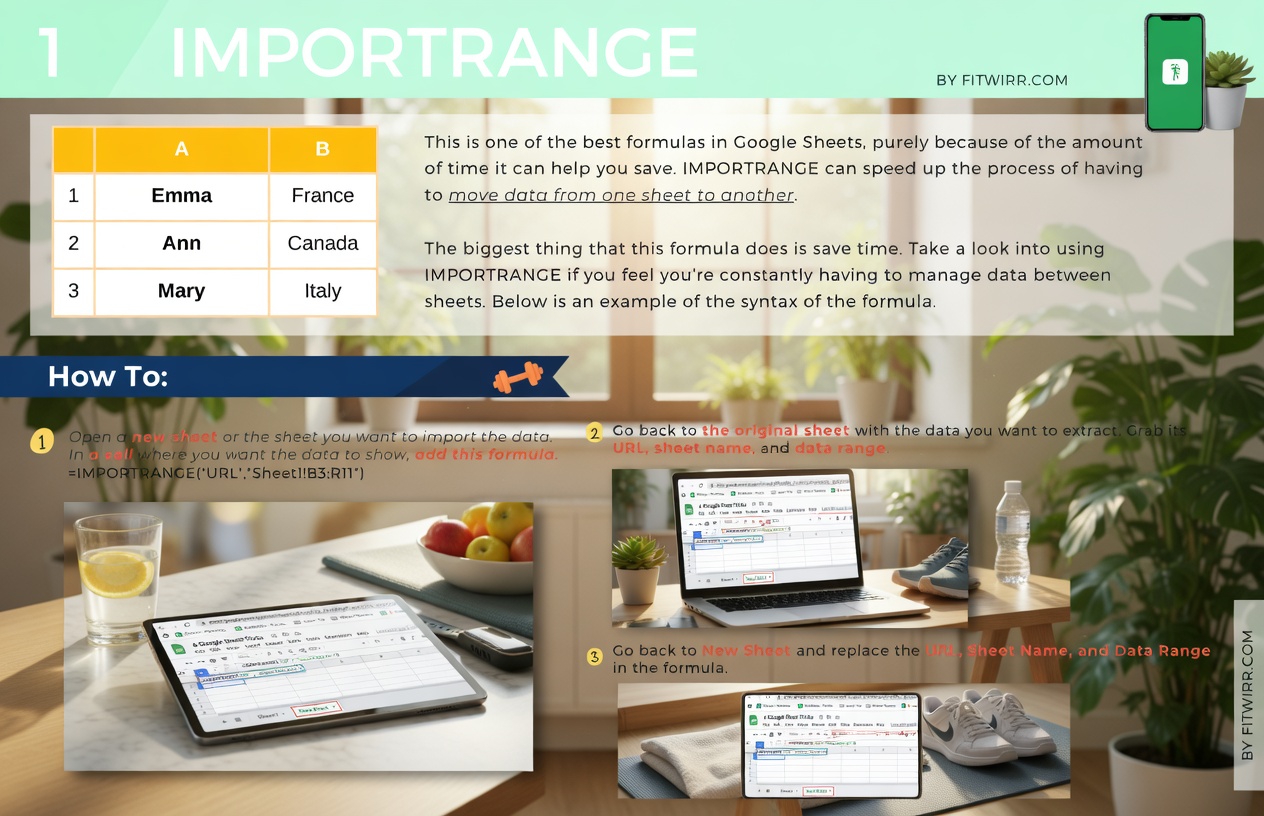
IMPORTRANGE is one of the most useful formulas in Google Sheets because it can save a huge amount of time. Its main job is to move data from one sheet to another without forcing you to copy and paste everything manually.
Instead of dealing with the usual problems that come with transferring data by hand, this formula simplifies the process. It can instantly bring data over, and it is especially helpful when you want different sheets to stay connected and updated.
It is also not difficult to use, which makes it even more practical for everyday spreadsheet tasks. If you often find yourself managing data between sheets, this formula is worth using.
Syntax:
=IMPORTRANGE("URL","Sheet1!B3:R11")
2. IFERROR
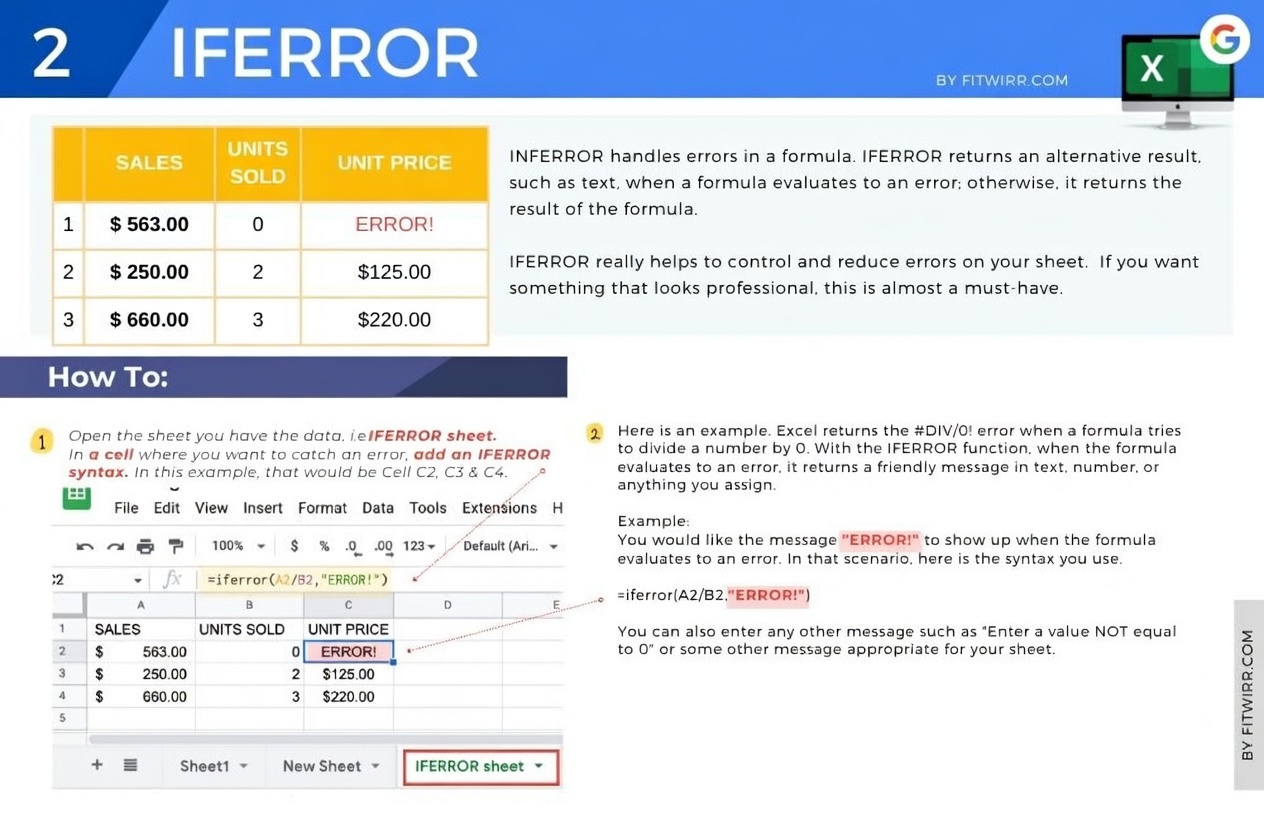
Errors can create major headaches in Google Sheets, especially when you use a lot of formulas or work with large, complicated spreadsheets. That is where IFERROR becomes incredibly helpful.
The more complex a sheet becomes, the more likely it is that something will go wrong. A formula may point to the wrong place, or a value may be entered incorrectly. Mistakes happen, and they can make a sheet look messy fast.
IFERROR helps manage those situations by controlling what appears when an error occurs. This is especially useful if your spreadsheet is being reviewed by a boss or client and you want it to look clean and professional.
Syntax:
=iferror(E4/D4, 0)
3. LEN
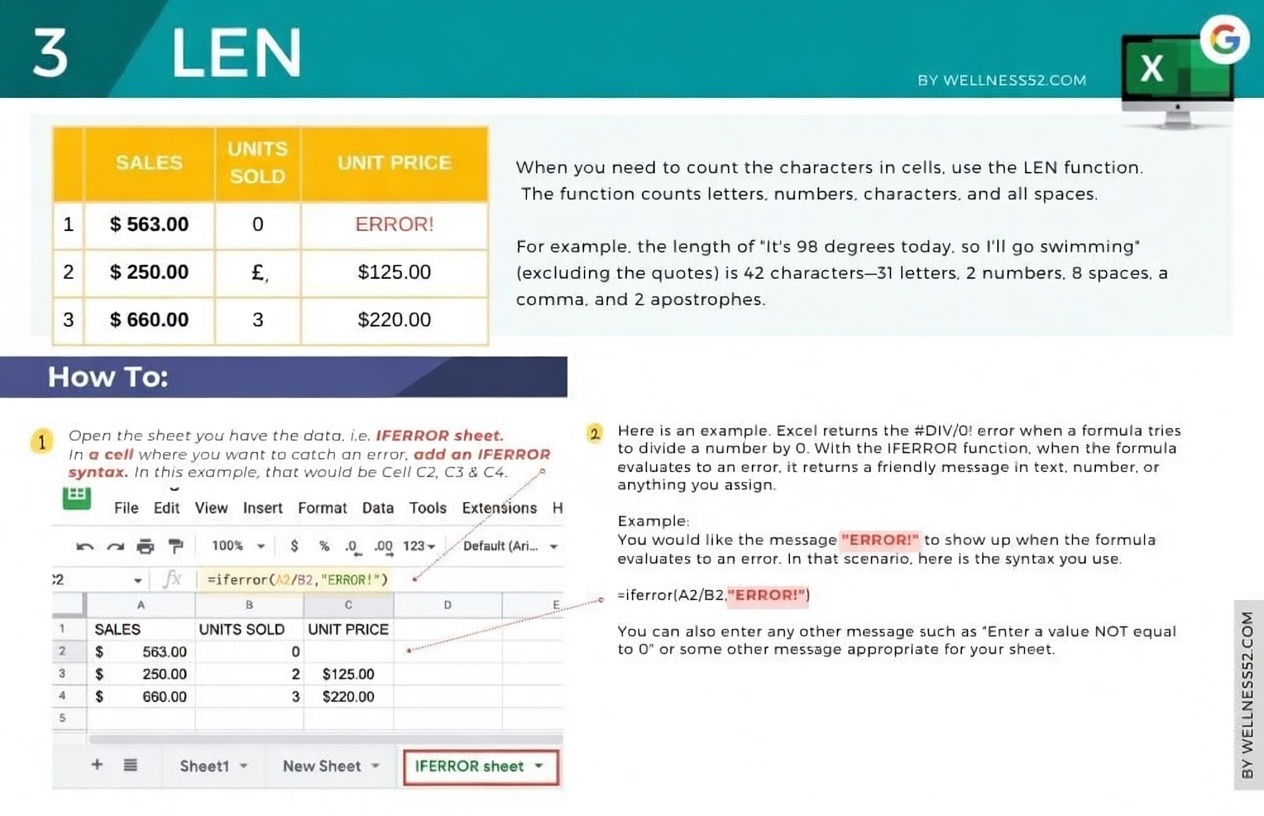
LEN is a simple formula, but that simplicity is exactly what makes it so useful. It checks a string and tells you how many characters it contains.
That character count appears wherever you place the formula, making it easy to monitor text length. This can be very helpful when you are working with character limits or creating different types of content with different length requirements.
If accurate counting matters in your spreadsheet, LEN can save time and help you stay organized.
Syntax:
=LEN(E2)
=LEN("Example Text")
4. COUNTIF
If you need to find out how many times a specific value appears, COUNTIF is a great formula to know. It checks for a chosen value and then tells you how often it shows up.
This can be useful for tracking certain items, adding up specific entries, or simply organizing data more clearly. It works well in both personal and professional spreadsheets because it cuts down on manual counting and makes information easier to analyze.
Since it can be used in many different situations, COUNTIF is one of those formulas that can quickly become a favorite.
Syntax:
=countif($C$2:$D$21,"Truck")
=countif($F$2:$G$21,">75")
5. V-LOOKUP
V-LOOKUP is another formula that becomes more valuable as your spreadsheets become larger and more detailed. It is designed to retrieve data from related sheets and display it where you need it.
For example, it can help when you need to check the status of orders on a large sheet or compare the completion status of many assigned projects between employees. Instead of searching manually, you can pull the data you need automatically.
This kind of function can save a lot of manual effort and time. Just remember to use $ to declare the range, since skipping that can lead to errors.
Syntax:
=VLOOKUP(B3,$H$3:$J$22,2,false)
6. ARRAYFORMULA
When you need to apply functions across a large amount of data, ARRAYFORMULA can be one of the fastest tools available in Google Sheets.
It is especially useful for mass-performing functions across an entire sheet. If you work on big projects with a lot of numbers and information, this can make your job much easier.
Adding cells or ranges is one of the simplest uses, but it can do more than that. The more data you have, the more valuable ARRAYFORMULA becomes, because it helps automate work and reduce manual effort.
Syntax:
=ArrayFormula(E2:E+F2:F)
The Easier Way to Manage Your Data
If Google Sheets feels slow or frustrating, the real problem may be that you are doing too much by hand. Formulas like IMPORTRANGE, IFERROR, LEN, COUNTIF, V-LOOKUP, and ARRAYFORMULA can solve common spreadsheet problems by saving time, reducing effort, and helping you work more efficiently.
Once you start using them regularly, managing data becomes much more convenient. These formulas can make your sheets easier to handle and your work much less stressful.