Gmail Unread Emails Taking Over? Here’s How to Clear Them Fast
Seeing a huge number of unread emails in Gmail can feel overwhelming. As those unopened messages keep stacking up, your inbox gets harder to manage and more frustrating to look at.
One UK study estimated that the average person receives more than 126 emails a day and opens only about 20% to 40% of them. That makes it easy for unread messages to build up quickly.
When too many unread emails collect in your account, they can crowd your inbox, use up your email storage, and may even leave you thinking about upgrading your free Gmail account.
The good news is that Gmail offers a quick way to remove unread emails in bulk and clean up your inbox in less than a minute.
Why Unread Gmail Messages Build Up So Quickly
The main reason this happens is simple: most people get a high volume of emails every day, but open only a portion of them. Over time, the unread pile grows larger and larger.
There is one important limitation to know before you start: as of October 2022, this method works only on Gmail’s web version. It does not work in the Gmail app on handheld devices like Android, iPhone, or iPad. For this tutorial, you will need to use a computer.
Delete or Archive: Which Option Should You Choose?
Before clearing your inbox, it helps to decide whether you want to delete your unread emails or archive them.
Delete Emails
If you delete unread emails in Gmail:
- They move to the trash bin
- They stay there for 30 days
- After 30 days, they are permanently deleted
If you change your mind, you can recover messages from the trash bin before that 30-day period ends.
Archive Emails
If you archive unread emails in Gmail:
- They leave your inbox
- They remain in your mailbox
- They stay searchable
- They still use your storage
Archiving can be a better choice if you are not ready to delete everything.
How to Delete Thousands of Unread Gmail Emails
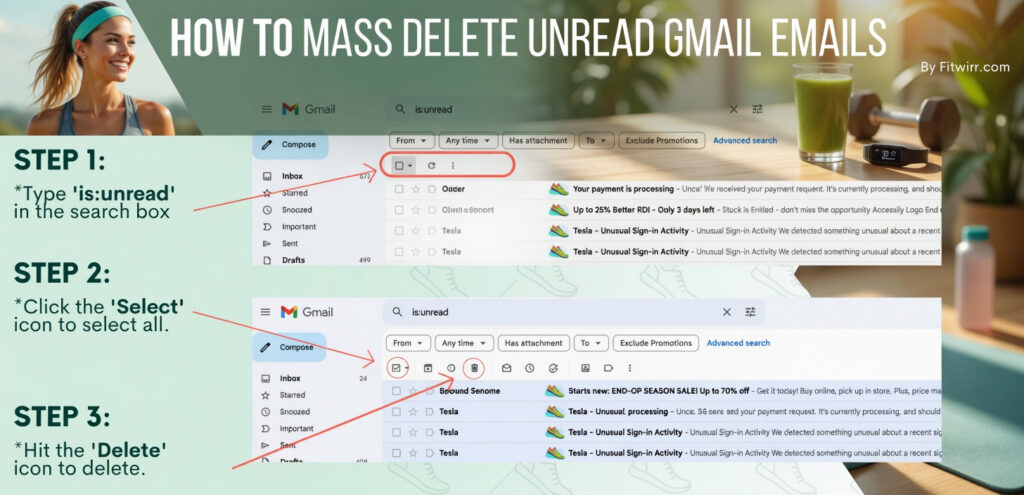
If your goal is to remove unwanted unread messages all at once, follow these steps:
- Open your computer browser and go to Gmail.com
- Sign in to your account
- In the search bar, type is: unread
- Click the empty checkbox at the top of your email list
- Choose All from the list
- If your unread emails go beyond one page, click Select all conversations that match this search
- Click the Trash icon at the top left of the messages
- If you want them removed permanently, empty the trash bin
How to Archive Unread Gmail Emails Instead
If you would rather keep those emails out of your inbox without deleting them, archiving is a simple option.
- Open your computer browser and go to Gmail.com
- Sign in to your account
- In the search bar, type is: unread
- Select the messages you want to archive by checking the boxes beside them
- To archive all unread emails, click the blank checkbox above your messages
- If your unread emails extend beyond one page, click Select all conversations that match this search
- Click the Archive icon, which looks like a box with a down arrow next to the select icon
A Quick Way to Get a Cleaner Inbox
If you have thousands of unread emails in Gmail, this method can help you clear them quickly. Whether you choose to delete them or archive them, you can make your inbox feel much more organized in just a few clicks.