Why Clearing Your Google Search History Matters
Your Google search history can reveal more than you think. It may include sensitive details such as where you bank, parts of your medical history, and past searches you would rather keep private.
For many people, that is reason enough to want a clean slate. Maybe you want to protect your privacy, remove embarrassing searches, or simply reduce what is stored on a shared computer. Whatever your reason, clearing your browser history can help limit your digital footprint and support better online privacy and security.
What to Know Before You Delete It
Before removing years of saved searches, keep these two important points in mind:
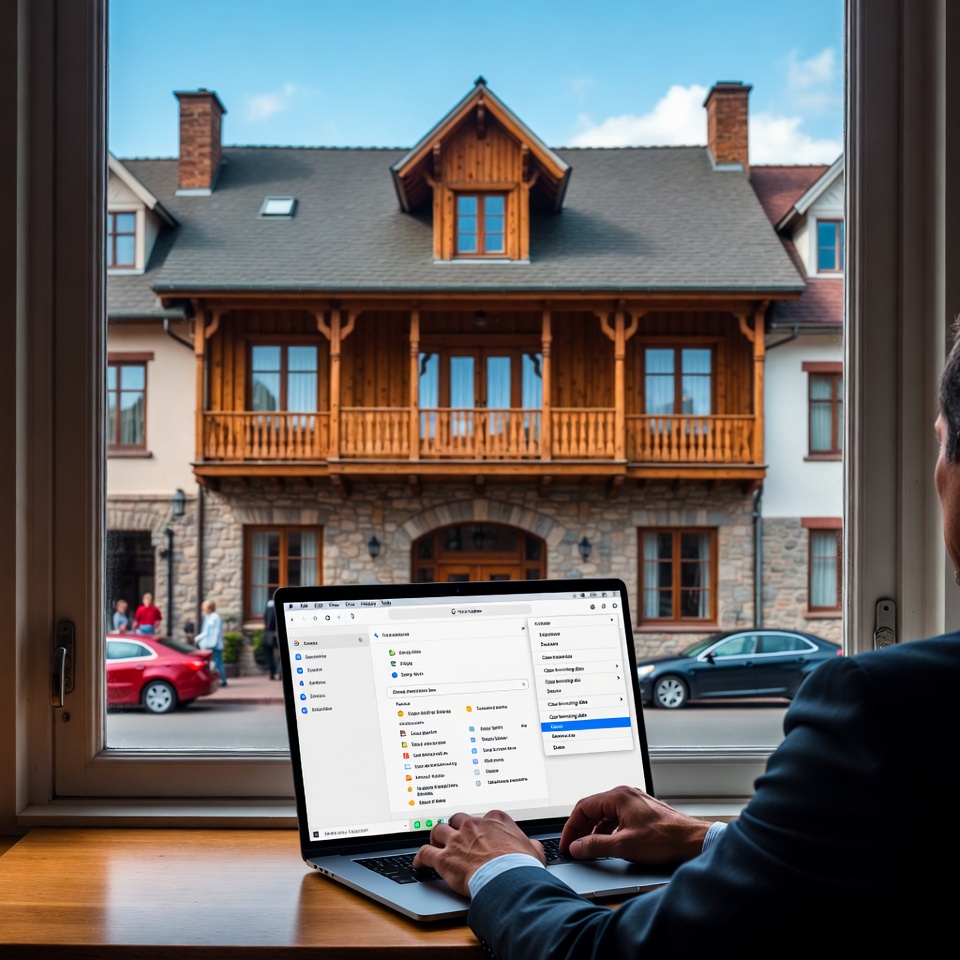
- Deleted history cannot be recovered. Once it is erased on your end, it is gone for good. If there are websites you may want to visit again, save them somewhere else first.
- Deleting it from your browser does not mean Google deletes it on their end. Your search activity may still be kept by Google even after you remove it from your browser.
Doing this cleanup from time to time can be a smart habit, especially if you use a shared computer. There is little benefit in keeping a lifetime of search activity stored in your browser.
How to Delete Google Search History in Chrome
If you want to remove your Google search history from Chrome, follow these simple steps:
-
Open Chrome
- Launch the Chrome browser on your computer. Any page can be open.
-
Click the three vertical dots
- In the top-right corner of the browser, click the button with the three vertical dots.
-
Go to History
- From the drop-down menu, select History.
- You can also use:
- Command + H on Mac
- Ctrl + H on PC
-
Choose Clear browsing data
- On the left side of the screen, click Clear browsing data.
- This will open the Privacy and Security page.
- Under Privacy and Security, select Clear Browsing Data.
-
Pick a time range
- In the popup window, use the first drop-down menu to choose how much history you want to delete.
- Options range from the last hour to all time.
-
Click Clear Data
- After choosing the time range and what you want removed, click Clear Data to complete the process.
A Simple Way to Keep Your Browser Clean
Regularly clearing your search history can help reduce your digital footprint and improve your privacy and security online. If you use a shared computer often, this small step can make a big difference in keeping your browsing activity more private.