Excel Taking Too Much Time?
Microsoft Excel is useful for all kinds of tasks, from managing a family budget to analyzing data. It is fairly easy to learn, but many people never get to the point where they use it efficiently.
That can become frustrating fast. Without a few smart shortcuts, it is easy to spend hours cleaning up spreadsheets, fixing formatting, and repeating the same small tasks again and again.
If you use Excel for things like a family travel budget, stock inventory, or other everyday worksheet tasks, a few simple tricks can save you a lot of time.
Why Excel Work Feels So Repetitive
A lot of Excel users rely on manual steps:
- Dragging rows and columns one by one
- Scrolling through long data sets
- Fixing spelling at the last minute
- Re-entering values that Excel changes automatically
- Inserting rows and columns repeatedly
- Combining data by hand
- Formatting values one cell at a time
These small jobs do not seem like much at first, but they add up quickly. That is why learning a few practical Excel hacks can make such a big difference.
7 Powerful Excel Hacks to Save Time
1. Auto-adjust cell sizes
If you usually resize cells by dragging column and row borders manually, this shortcut is much faster.
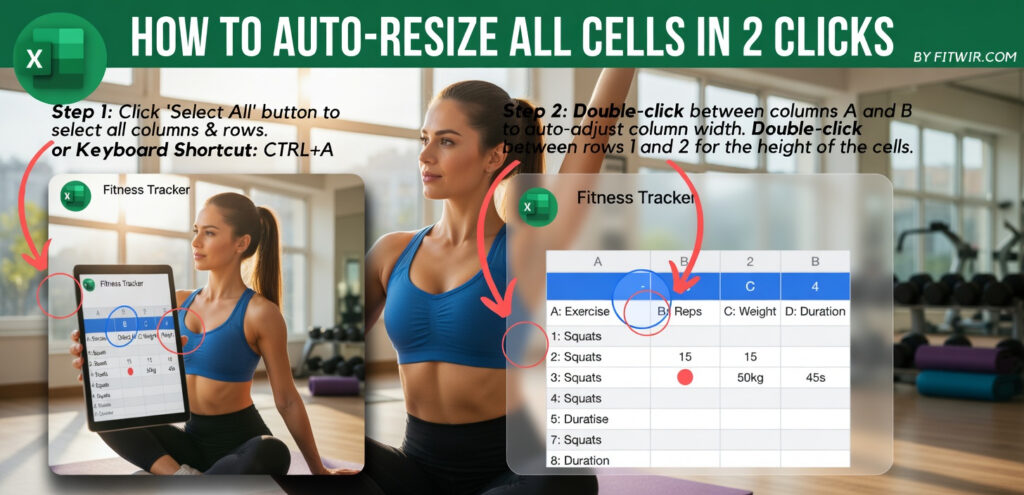
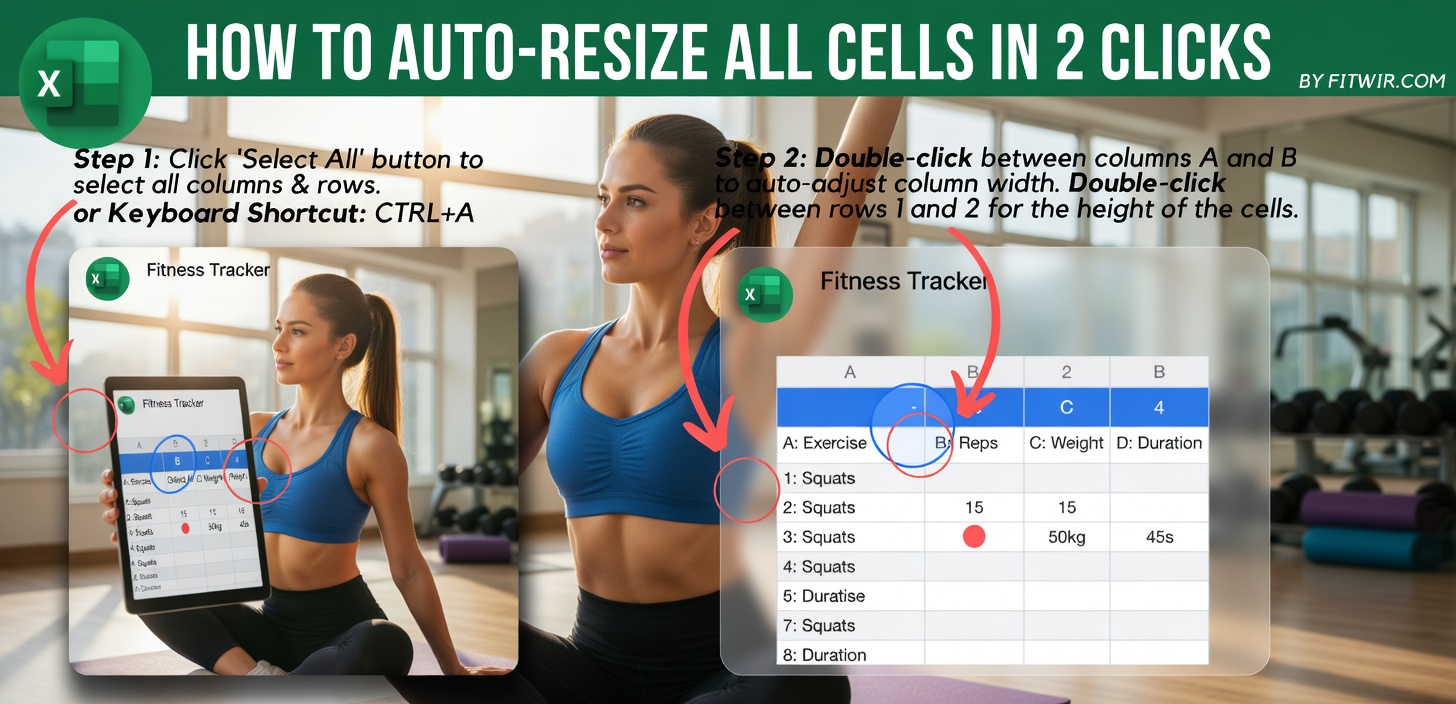
Step 1: Select the whole worksheet by clicking the Select All button above the row headers and beside the column headers. You can also press CTRL+A or Command+A on a Mac.
Step 2: Double-click between columns A and B to automatically adjust column width. Then double-click between rows 1 and 2 to adjust row height.
That is all it takes to size the cells for the full worksheet.
2. Run spell check quickly
Unlike other Microsoft Office programs, Excel does not automatically run spell check. That makes it easy to miss spelling mistakes if you forget to check before turning in your work.
The good news is that the fix is simple.
Step 1: Select the entire worksheet with CTRL+A or Command+A on a Mac, or click the Select All button.
Step 2: Press F7 on your keyboard.
This starts spell check for the worksheet.
3. Move through large data without scrolling
Scrolling through a small table is manageable. But once you are working with hundreds or even thousands of rows, manual scrolling becomes slow and inefficient.
There is a much faster way to jump through your data.
Step 1: Press Ctrl and the up or down arrow. On a Mac, use Command with the arrow keys.
This takes you straight to the top or bottom of the data set.
4. Enter numbers that start with 0
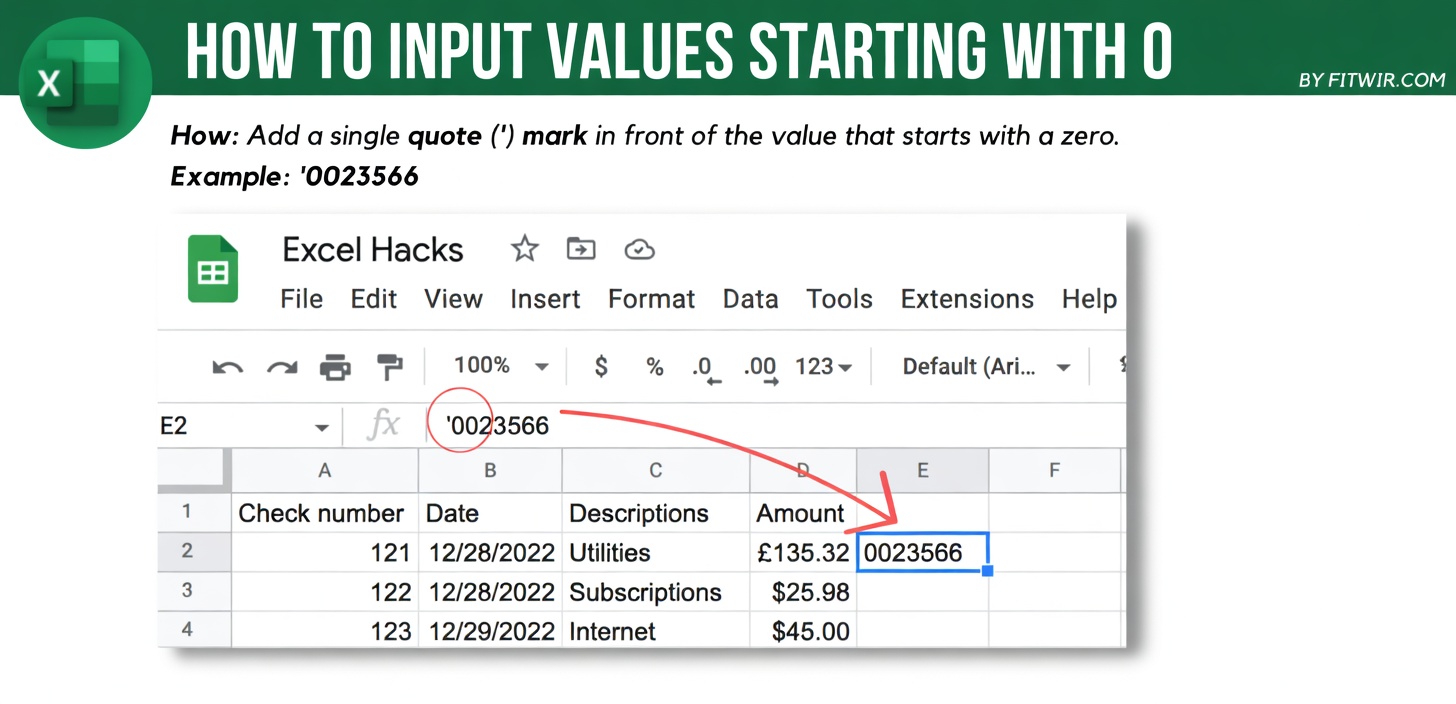
Excel usually removes zeros at the beginning of a number. For example, if you type 0023566, Excel may return 23566 instead.
That can be a problem when your data includes values that must begin with zero.
Here is the workaround:
Step 1: Place a single quote before the value.
Example: '0023566
This lets you keep the leading zero.
5. Insert more than one row or column at once
Adding rows or columns one at a time is another repetitive task that slows people down. If you already know how many you need, you can insert multiple rows or columns in one go.
Insert rows
Step 1: Select the same number of row headings as the number of rows you want to add. For example, if you want 5 new rows, select 5 rows.
Do this by holding down Control and selecting the rows.
Step 2: Choose Insert from the pop-up menu.
Insert columns
Step 1: Select the same number of column headings as the number of columns you want to add. For example, if you want 5 new columns, select 5 existing columns.
Do this by holding down Control and selecting the columns.
Step 2: Choose Insert from the pop-up menu.
6. Combine first and last names
If you are working on something like a family holiday card order or a customer list at work, combining names manually can take a long time.
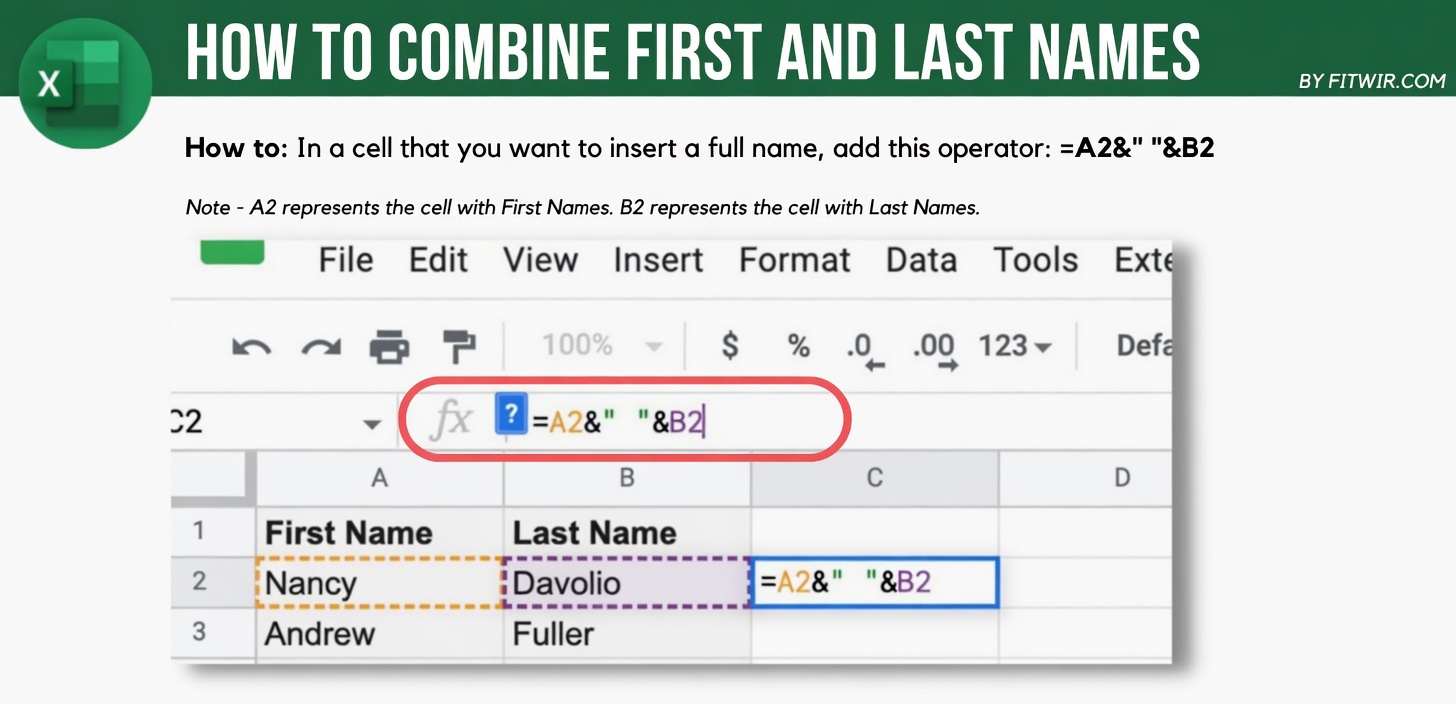
A simple operator can join first and last names from two separate columns into one Full Name column.
Step 1: In the cell where you want the full name to appear, enter:
=A2&" "&B2
In this example:
- A2 contains the first name
- B2 contains the last name
Be sure to reference the correct cells for your worksheet.
7. Format values instantly
If a column contains numbers that should be shown as percentages or dollars, you do not have to format each cell one by one.
For percentages, use this shortcut:
Ctrl – Shift – %
This adds percent formatting to the values in the column. The same idea can also be used for dollar values.
The Simple Solution: Use Faster Excel Shortcuts
Excel becomes much easier when you stop doing everything manually. These hacks help you work faster by cutting down repetitive steps and making everyday spreadsheet tasks more efficient.
Whether you are organizing a travel budget, managing inventory, or building lists for work, these Excel tricks can save hours and help you use the program with more confidence.